Ir al contenido principal

Calculation Capacity Exceeded Error in Sage Enterprise Management (Sage X3)

Calculation Capacity Exceeded Error in Sage Enterprise Management (Sage X3)
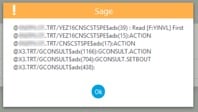
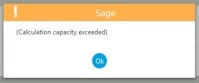
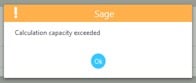
Sometimes, in Sage Enterprise Management (Sage X3), the error “Calculation capacity exceeded” appears in a function where a customization was added. The error message is not descriptive, but analyzing the subsequent error messages makes it possible to identify the line of code causing the problem.

Here's what you do when you see the calculation capacity exceeded error in Sage Enterprise Management.

Background

When we first saw this error, we thought the calculation-capacity-exceeded error was a memory issue in the folder setup, but there was enough free memory available for the Enterprise Management session. We then thought it was a data issue, such as incorrect characters, but after running different SQL scripts, we couldn’t identify any unexpected characters.
Finally, we realized it was a data conversion problem.

We were also initially confused because the customization worked fine for almost a year; after finding the cause of the problem, we can tell that it didn’t occur before because no invoice had ever had more than 32 lines.
 calculation capacity exceeded error in Sage Enterprise Management (Sage X3)
This error is related to issues with data type conversion. When a larger value is assigned to a variable with a smaller type, the system displays the “Calculation capacity exceeded” error.

calculation capacity exceeded error in Sage Enterprise Management (Sage X3) 

The line above was crashing the logic because the table has values bigger than integer.
Shortint à -32768 to +32767


 calculation capacity exceeded error in Sage Enterprise Management (Sage X3)
In our case, when an invoice has more than 32 lines and the next line ID is 33000, the object can’t handle it because it’s declared as an integer.

Solution

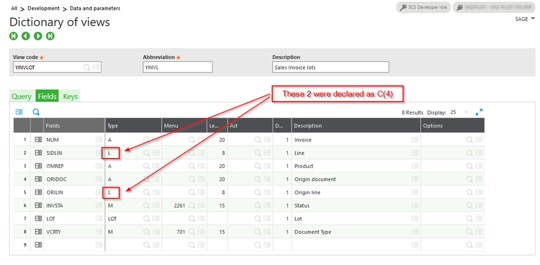
There was a view with incorrect data types for the lines; changing the data type from C to L fixed the problem.
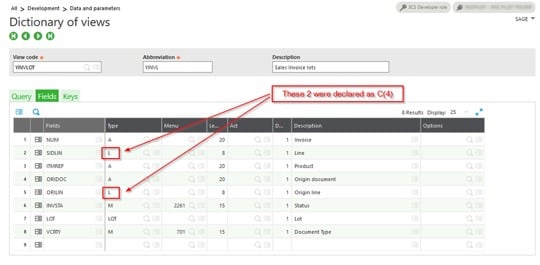

calculation capacity exceeded error in Sage Enterprise Management (Sage X3)

Entradas populares de este blog

SAGE X3 SILENT IMPORT (IMPORTSIL) WITH ERROR CATCHING

FUENTE ORIGINAL: https://pluginx3.com/en/blog/post/sage-x3-silent-import-importsil-with-error-catching.html You already know how to manually generate a CSV file in order to import it threw a template in Sage X3. But If you wonder how to catch detailed errors after a silent import here is the solution. Sometimes you need to catch the incoming errors in order to alert the end-user regarding an issue. Closed period, wrong date etc …. Unfortunalty the standard Sage X3 silent import function doesn’t natively show the detailed errors during the import process. Call IMPORTSIL([M:IMP2]MODIMP,[M:IMP2]NOMIMP) From GIMPOBJ And the standard function ERR_IMPORT will only show the overall status of the importation and not the detailed errors. IMPORTSIL function is pushing all the log data into a tracefile in order to avoid any popup on end-user screen. So you have a log file available in order to search for errors in it. Sage X3 runtime is using the same principals standards as any shell for log...

Valores de fstat

Fstat fstat  is a numeric status that is returned upon execution of a database operation, a sequential file operation, or a lock instruction. Syntax fstat Examples # MYTABLE is a table with a key called KEY1, that has a unique component called KEYVAL # Create a record in the table MYTABLE with they key value 1 if it doesn't exist Local File MYTABLE [MYT] Read [MYT]KEY1=1 If fstat [MYT]KEYVAL=1 : Write [MYT] If fstat MSG="The key was created in the mean time" Else MSG="Key created" Endif Else MSG="Key already exists" Endif Details fstat  is always set to '0' if the operation is successfully completed, and has a non-null value if there is an error: In a sequential read ( Getseq  and  Rdseq ),  fstat  is set to '1' at the end of the file. On  Lock ,  fstat  is set to '1' if the lock could not be performed. For a database operation ( Read ,  Look ,  Readlock ,  For ,  Write ,  ...

How To Add a Custom Selector for the Screen Field

Fuente original del artículo:   https://www.rklesolutions.com/blog/how-to-add-a-custom-selector-for-the-screen-field January 5, 2022 By RKL Team Leave a Comment There may be times when you want to add a pop-up window to select a field for a screen. Sometimes this can be handled automatically if the field is a standard X3 object field (i.e. when selecting a product with a type of ITM from the ITMMASTER table). There may be other times where a standard look-up is not available, and some custom code is required to do the selection window. We'll show you how to add a custom selector of your choosing to the screen field. ADD SELECT ON SCREEN FIELD The first step is to add the appropriate code to the field on the screen in Sage X3: Go to  Development > Script Dictionary > Screens Select Your Screen Select the field to have the lookup for  by moving your cursor to it on the screen. The field should show with a blue background. Select a type of "Selection" , and an  ac...