Ir al contenido principal

Creating a Function to Call a Requester in Sage Enterprise Management (Sage X3) V7 and After

Creating a Function to Call a Requester in Sage Enterprise Management (Sage X3) V7 and After
Saving a few clicks to open something is a good opportunity to showcase the capabilities of a system like Sage Enterprise Management (Sage X3), so when a client asked me to create a function to call a requester, I took on the challenge.

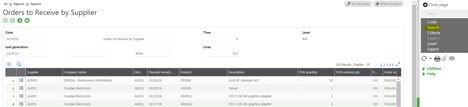
After you create your requester in Standard Sage Enterprise Management, you can go to the set-up function where you built the requester and click ‘Run.’
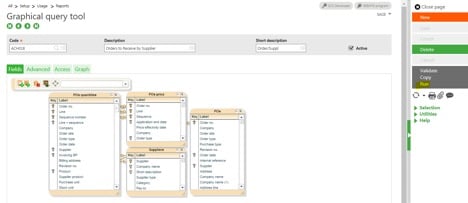

function to call a requester


You can also go to Reports > View queries, search for the appropriate query, and run it.
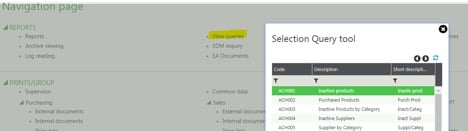

function to call a requester

function to call a requester


To avoid searching for records or giving access to the view queries function, you can follow the steps below to create a function that will call a requester.

The first step is to create a function in the development area. While it sounds complicated, it’s really very straightforward and requires very few pieces of information.

In our example, we’ll create a function that will call the Order to Receive by Supplier requester shown above.

Go to Development > Script dictionary > Functions
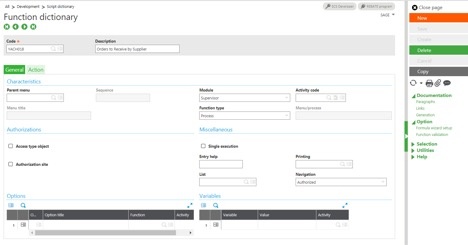

function to call a requester


Note: you can use an activity code to protect it against eventual updates or to be able to put it in a patch.
Then go to the second tab, Action, and enter the following:
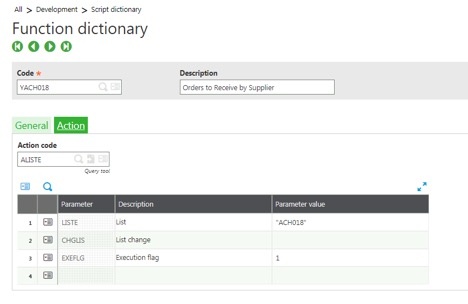

function to call a requester


Now that you’ve created the function, you need to create the associated menu item. Go to Administration > Authoring > Pages > Menu Items.

Create it by entering the information as follows:
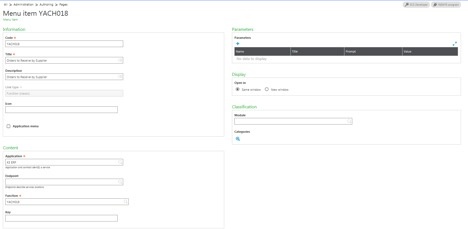

function to call a requester

Choose a self-explanatory title, as it will be the name you see in the menu later. While you can take a look at your work when you create your menu item, the work isn’t finished.

The last piece to this puzzle is specifying where you want this function to appear.


To do so, place this menu item in a module, submodule, and sometimes in a group of functions in a submodule. Right now, what we’ll do is place this new function in the purchasing module under the different Orders inquiries.

Go to Administration > Authoring > Navigation pages and create it in each of the navigation pages you are maintaining for all the roles you created during your security configurations.

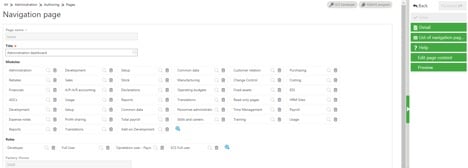
In our example, we’ll add it to the out-of-the-box navigation page called Administration dashboard.
Locate it and then edit it by clicking on the pencil on the line.
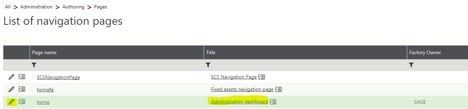
function to call a requester


Then click on Edit page content on the right-hand side of the page that just opened.

function to call a requester


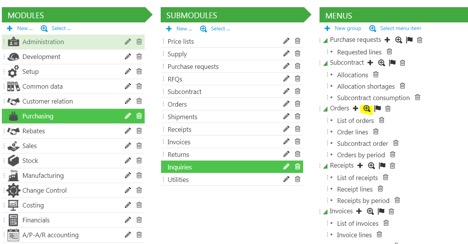
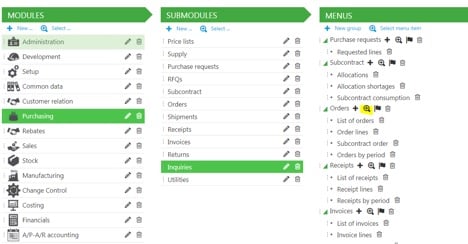
Click on the purchasing module, then inquiries, and add it to the Orders group by clicking on the magnifying glass to select a menu item.

function to call a requester


Select it from the list as shown below:


function to call a requester


It should now appear in the list of functions available in that group. No need to save anything here; it will save automatically.

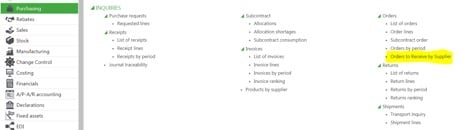
The function is also available in the inquiries section of the purchasing module under orders as specified in the navigation page configuration above. (Changes are immediate.)

function to call a requester


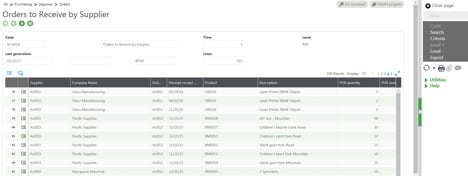
Click on the function and it will look exactly as if you were viewing it using the two methods described at the beginning of this tutorial.

function to call a requester


And that's how you go about creating a fuction to call a requester in Sage Enterprise Management!

We hope you find this useful. If you need additional information for creating a function that calls a requester or anything Sage Enterprise Management related, please contact us. We’re here to help you make the most of this great product.


Entradas populares de este blog

How to Call an External Program from Sage ERP X3

Origen fuente:   https://www.rklesolutions.com/blog/sage-x3-call-external-program November 20, 2014 By Denise Hartman Leave a Comment It is sometimes useful to be able to access external programs, such as .exe files, from the  Sage ERP X3   menu. Below are instructions for adding a menu item to Sage X3 that references a .Net .exe. COPY THE .EXE FILE TO THE SAGE X3 DIRECTORY The example used here uses the  Callui  function in the Sage X3 code to call OpenFile, and references the .exe program using the parameter UILocalDir. The program being executed must reside in a pre-defined list of directories available to this function. Depending on the parameter used for UILocalDir, the .exe should be copied to one of the 3 directories below. Temp Report RtsTemp Below is an excerpt from the X3 Help, which defines where each of these directories resides within the Sage ERP X3 client installation. In this example, the Temp directory is used. Bel...

SAGE X3 SILENT IMPORT (IMPORTSIL) WITH ERROR CATCHING

FUENTE ORIGINAL: https://pluginx3.com/en/blog/post/sage-x3-silent-import-importsil-with-error-catching.html You already know how to manually generate a CSV file in order to import it threw a template in Sage X3. But If you wonder how to catch detailed errors after a silent import here is the solution. Sometimes you need to catch the incoming errors in order to alert the end-user regarding an issue. Closed period, wrong date etc …. Unfortunalty the standard Sage X3 silent import function doesn’t natively show the detailed errors during the import process. Call IMPORTSIL([M:IMP2]MODIMP,[M:IMP2]NOMIMP) From GIMPOBJ And the standard function ERR_IMPORT will only show the overall status of the importation and not the detailed errors. IMPORTSIL function is pushing all the log data into a tracefile in order to avoid any popup on end-user screen. So you have a log file available in order to search for errors in it. Sage X3 runtime is using the same principals standards as any shell for log...

How to Delete particular row and reset Grid

Origen: https://www.greytrix.com/blogs/sagex3/2014/06/30/how-to-delete-particular-row-and-reset-grid/ By  Greytrix   |   June 30, 2014 0 Comment We usually come across a scenario when we need to delete row from a grid through coding. Now we can even think of using SQL queries to delete the data, but these changes were reflected at the database level. The screen do not have the changes reflected and this may cause data inconsistency. So for deleting line from grid and then resetting the grid I used ‘DELA’ an existing function of X3. New Stuff :   How to send mail programmatically Dela  is used to delete elements from single-sized tables, from a given index. And also it resets the grid.   Syntax: Dela start [ , number [ , limit ] ] list_nom_var Example: Dela is used to delete elements (default 1) from a set of single-sized tables. In the instruction’s syntax, start establishes the index (shared by all the tables) where the deletion ...