Ir al contenido principal

How to test a Sage Enterprise Management, Sage X3 Web Service of Type Subprogram Using SOAPUI.iShare


You have a web service (WS) working as expected, you made a minor change and all of the sudden the WS is not working anymore…What do you do? You could try troubleshooting using X3 Classic SOAP web services function but in our experience, it is much better to use SOAPUI instead. This is an open source software designed to manage WS calls. It is easy to setup and use and allows you to reuse your test code.


Steps to setup and use SOAPUI for X3 subprogram web services

  1. Download software from https://www.soapui.org/downloads/latest-release.html
  2. Open SOAPUI.
  3. Select Switch the Workspace from File menu. Enter a name for a file that will contain the entire workspace. The workspace can have multiple projects pointing to different Sage X3 installations and folders. Make sure you add .xml extension to the file name. Click Open.
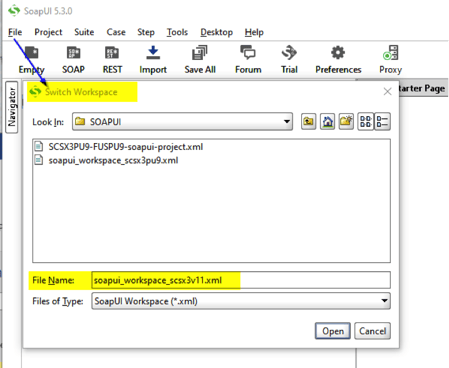
SOAPUI 1


  1. You will get a confirmation message, click Yes.
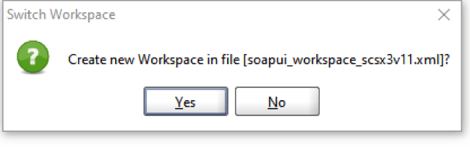
    SOAPUI 2
  2. Create a new SOAP project by right clicking on Projects (1) and selecting New SOAP Project. The Initial WSDL URL (2) contains the X3 web server and port. The entire URL is http://YOUR_X3_SERVER:YOUR_X3_PORT/soap-wsdl/syracuse/collaboration/syracuse/CAdxWebServiceXmlCC?wsdl
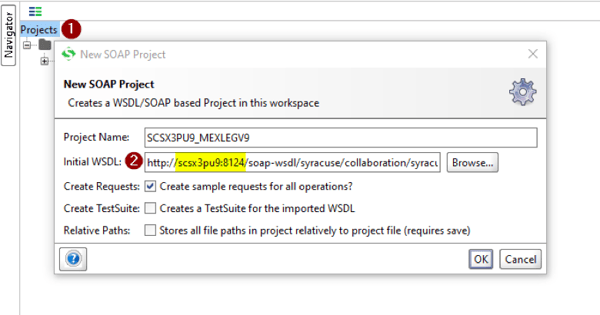
    image-7

  3. Specify X3 credentials to connect to the folder. Double click on CAdxWebServiceXmlCCSoapBinding (1), then click on Service Endpoints tab (2) and enter your username (3) and password (4).

image-8


  1. To setup a request that executes the X3 subprogram WS, select run method (1) and click on Request 1 (2). You could change the name to a more meaningful name (3) .
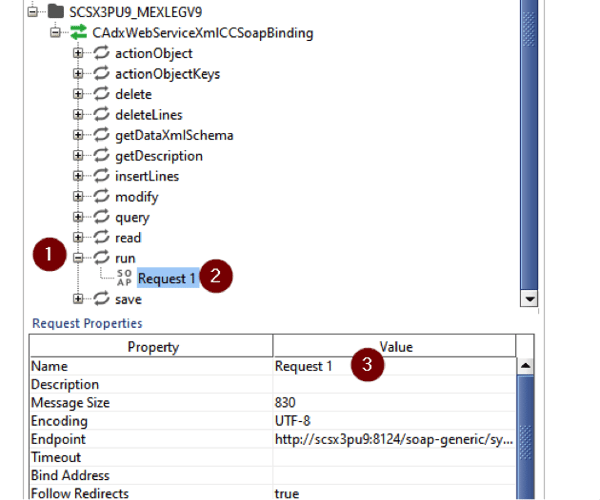
    SOAPUI 5


  1. Double click on the new Request (1) and setup the authentication as Basic authentication. To do so, click on Auth (2) and select Basic on the Authorization dropdown (3). If Basic doesn’t exist already, select Add New Authorization from the dropdown (4) and create it by selecting Basic Type (5).
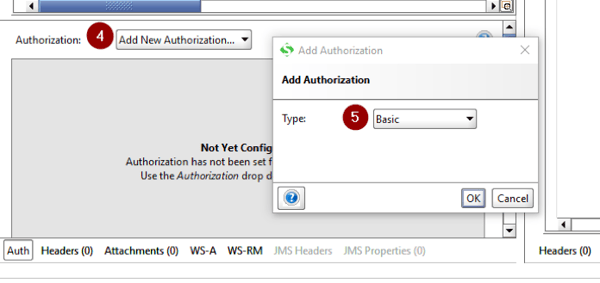

    SOAPUI 5


    image-11


  1. Enter the X3 credentials to connect to the folder. They don’t have to be the same as the credentials used to connect to the WS Pool. Make sure Authenticate pre-emptively is selected.
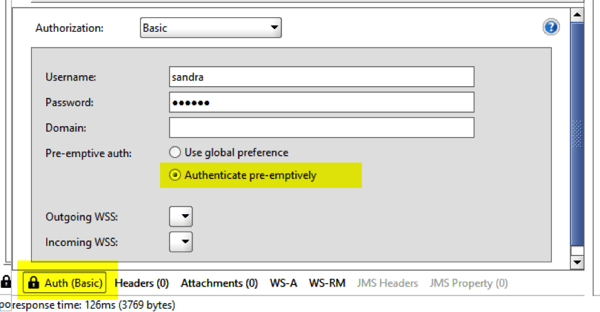
    SOAPUI 8


  1. Fill in SOAP XML parameters with the appropriate information:
    1. codeLang. X3 language.
    2. poolAlias. X3 Pool name.
    3. requestConfig. adxwss.trace.on=on&adxwss.beautify=true&adxwss.optreturn=XML
    4. publicName. Web service name.
    5. imputXml. Web service input parameters. Make sure the parameters are enclosed on <![CDATA[…]]> tags.
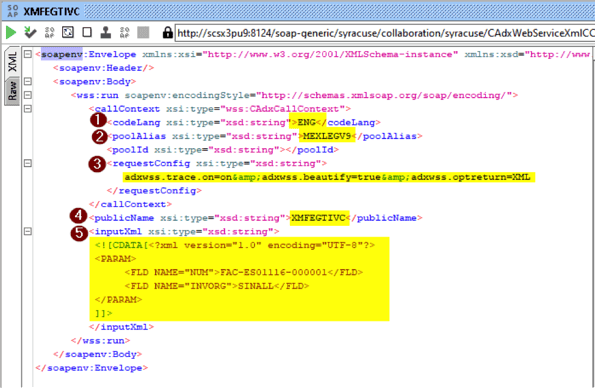

      SOAPUI 9

  2. Submit the request by clicking on the green arrow in the toolbar and get your results.
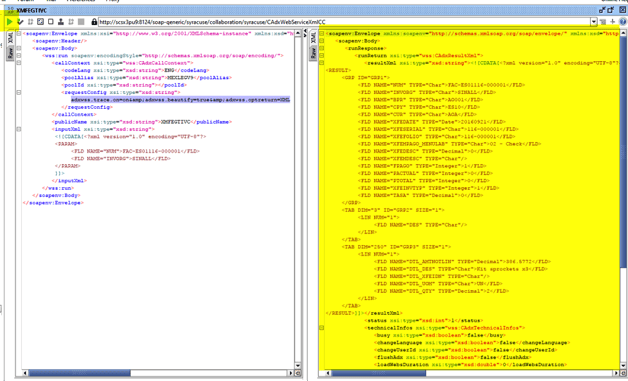

    SOAPUI 10

  3. Save your project and reuse it every time you want. Right click on the project (1) and select Save Project.
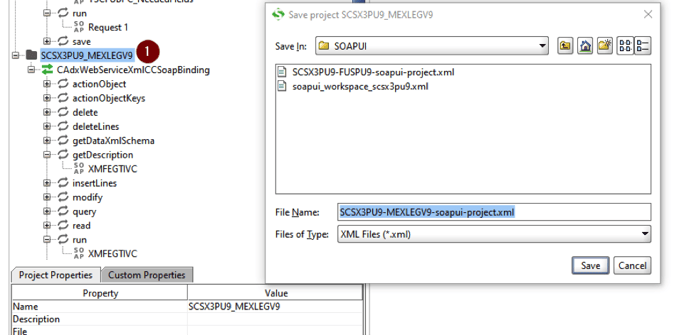

    SOAPUI 11

Now you know how to use this program. Give it a try next time you have issues with web services.

Entradas populares de este blog

SAGE X3 SILENT IMPORT (IMPORTSIL) WITH ERROR CATCHING

FUENTE ORIGINAL: https://pluginx3.com/en/blog/post/sage-x3-silent-import-importsil-with-error-catching.html You already know how to manually generate a CSV file in order to import it threw a template in Sage X3. But If you wonder how to catch detailed errors after a silent import here is the solution. Sometimes you need to catch the incoming errors in order to alert the end-user regarding an issue. Closed period, wrong date etc …. Unfortunalty the standard Sage X3 silent import function doesn’t natively show the detailed errors during the import process. Call IMPORTSIL([M:IMP2]MODIMP,[M:IMP2]NOMIMP) From GIMPOBJ And the standard function ERR_IMPORT will only show the overall status of the importation and not the detailed errors. IMPORTSIL function is pushing all the log data into a tracefile in order to avoid any popup on end-user screen. So you have a log file available in order to search for errors in it. Sage X3 runtime is using the same principals standards as any shell for log...

Valores de fstat

Fstat fstat  is a numeric status that is returned upon execution of a database operation, a sequential file operation, or a lock instruction. Syntax fstat Examples # MYTABLE is a table with a key called KEY1, that has a unique component called KEYVAL # Create a record in the table MYTABLE with they key value 1 if it doesn't exist Local File MYTABLE [MYT] Read [MYT]KEY1=1 If fstat [MYT]KEYVAL=1 : Write [MYT] If fstat MSG="The key was created in the mean time" Else MSG="Key created" Endif Else MSG="Key already exists" Endif Details fstat  is always set to '0' if the operation is successfully completed, and has a non-null value if there is an error: In a sequential read ( Getseq  and  Rdseq ),  fstat  is set to '1' at the end of the file. On  Lock ,  fstat  is set to '1' if the lock could not be performed. For a database operation ( Read ,  Look ,  Readlock ,  For ,  Write ,  ...

Sage X3 Create a new CLOB Text

Here how to create a CLOB text Funprog F_CRELOB ( YABRFIC , YTEXTE ) Value Char YABRFIC Value Char YTEXTE Local Char XXRTFTXT ( 250 ) ( 3 ) XXRTFTXT ( 0 ) = "{\rtf1\ansi\ansicpg1252\deff0\deflang1033{\fonttbl{\f0\fswiss\fprq2\fcharset0 MS Sans Serif;}}\viewkind4\uc1\pard\f0\fs17 " XXRTFTXT ( 1 ) = YTEXTE XXRTFTXT ( 2 ) = "\par}" Local Char X_RET Local Integer XXOK Local Char XCHAMPLIEN : XCHAMPLIEN = "YYYY" Global Char YYYY : YYYY = YABRFIC Local Clbfile WWCLOB Local Mask ACLOB [ M :ACL ] Setlob WWCLOB With XXRTFTXT [ M :ACL ] CLOB = WWCLOB Call CRE_CLOB_ACL ( XCHAMPLIEN , XXOK ) From TRTX3TEX Close Local Mask [ M :ACL ] X_RET = YYYY Kill YYYY End X_RET