Ir al contenido principal

Managing Conditional Formatting in Sage Enterprise Management (Sage X3)

Managing Conditional Formatting in Sage Enterprise Management (Sage X3)
Often, when our prospects are evaluating Sage Enterprise Management (Sage X3) and trying to differentiate it from other competing products, they’re very impressed with the level of personalization and flexibility that comes inherent with the product.

You can think of conditional formatting as automatic formatting that’s triggered by conditions you define. For example, you can use conditional formatting to automatically change the color of cells that contain values greater than or less than certain values. Conditional formatting is a great way to visually highlight important information and, as part of our demonstrations, we’re frequently asked to show how Sage Enterprise Management can color code certain fields based on a set of business rules.


While prospects are typically impressed at Enterprise Management’s ability to do this, we find that they rarely take advantage of it once the system is implemented. The intention of this blog is to remind our clients and tell prospects how simple this feature really is, and hope that it can be quite useful for many users.

Here’s an example scenario – what if you could know, at a glance, that you’re short on an item or that you fell under the acceptable margin for the calculated net price? Using conditional formatting, a visual queue can easily and quickly show you when something isn’t right, allowing you to manage the exception and make your operation run more smoothly.

Here's how to use conditional formatting in Sage Enterprise Management:

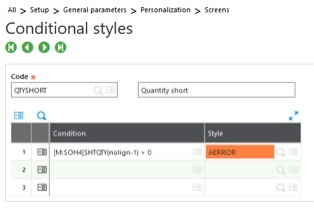
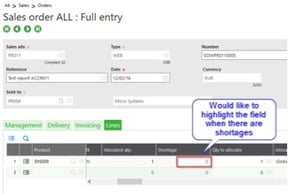
Identify field that needs to be formatted.
conditional formatting in Sage Enterprise Management (Sage X3)


Create conditional style code.


conditional formatting in Sage Enterprise Management (Sage X3)


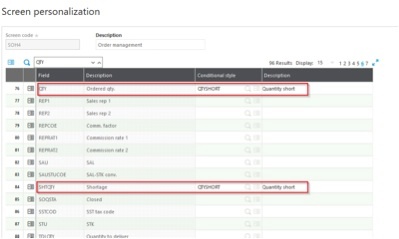
Associate code with the field.


conditional formatting in Sage Enterprise Management (Sage X3)


A transaction will generate if entry transactions are involved.
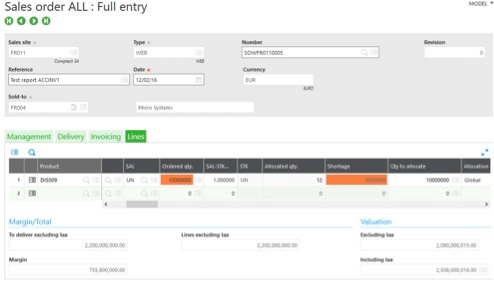
After creating or modifying a Sales Order, the fields get highlighted.
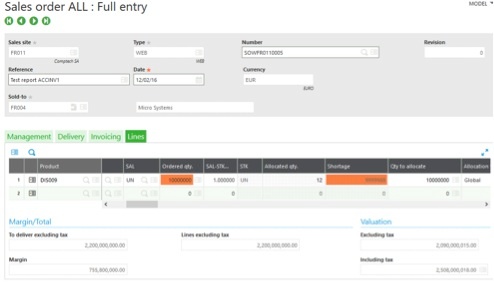

conditional formatting in Sage Enterprise Management (Sage X3)

In summary, the conditional formatting feature is a great way to visualize data and make information “pop” for the end-user, allowing for quick decision-making. If you’re working in a grid with many line items (such as a large sales order imported from your e-commerce site), it would be extremely difficult to see patterns and trends of the raw data without conditional formatting.

Entradas populares de este blog

SAGE X3 SILENT IMPORT (IMPORTSIL) WITH ERROR CATCHING

FUENTE ORIGINAL: https://pluginx3.com/en/blog/post/sage-x3-silent-import-importsil-with-error-catching.html You already know how to manually generate a CSV file in order to import it threw a template in Sage X3. But If you wonder how to catch detailed errors after a silent import here is the solution. Sometimes you need to catch the incoming errors in order to alert the end-user regarding an issue. Closed period, wrong date etc …. Unfortunalty the standard Sage X3 silent import function doesn’t natively show the detailed errors during the import process. Call IMPORTSIL([M:IMP2]MODIMP,[M:IMP2]NOMIMP) From GIMPOBJ And the standard function ERR_IMPORT will only show the overall status of the importation and not the detailed errors. IMPORTSIL function is pushing all the log data into a tracefile in order to avoid any popup on end-user screen. So you have a log file available in order to search for errors in it. Sage X3 runtime is using the same principals standards as any shell for log...

How to Call an External Program from Sage ERP X3

Origen fuente:   https://www.rklesolutions.com/blog/sage-x3-call-external-program November 20, 2014 By Denise Hartman Leave a Comment It is sometimes useful to be able to access external programs, such as .exe files, from the  Sage ERP X3   menu. Below are instructions for adding a menu item to Sage X3 that references a .Net .exe. COPY THE .EXE FILE TO THE SAGE X3 DIRECTORY The example used here uses the  Callui  function in the Sage X3 code to call OpenFile, and references the .exe program using the parameter UILocalDir. The program being executed must reside in a pre-defined list of directories available to this function. Depending on the parameter used for UILocalDir, the .exe should be copied to one of the 3 directories below. Temp Report RtsTemp Below is an excerpt from the X3 Help, which defines where each of these directories resides within the Sage ERP X3 client installation. In this example, the Temp directory is used. Bel...

Sage X3 Create a new CLOB Text

Here how to create a CLOB text Funprog F_CRELOB ( YABRFIC , YTEXTE ) Value Char YABRFIC Value Char YTEXTE Local Char XXRTFTXT ( 250 ) ( 3 ) XXRTFTXT ( 0 ) = "{\rtf1\ansi\ansicpg1252\deff0\deflang1033{\fonttbl{\f0\fswiss\fprq2\fcharset0 MS Sans Serif;}}\viewkind4\uc1\pard\f0\fs17 " XXRTFTXT ( 1 ) = YTEXTE XXRTFTXT ( 2 ) = "\par}" Local Char X_RET Local Integer XXOK Local Char XCHAMPLIEN : XCHAMPLIEN = "YYYY" Global Char YYYY : YYYY = YABRFIC Local Clbfile WWCLOB Local Mask ACLOB [ M :ACL ] Setlob WWCLOB With XXRTFTXT [ M :ACL ] CLOB = WWCLOB Call CRE_CLOB_ACL ( XCHAMPLIEN , XXOK ) From TRTX3TEX Close Local Mask [ M :ACL ] X_RET = YYYY Kill YYYY End X_RET